RAG
Demo Time
Let's build our own Poyobot to answer questions about a hackathon a generic LLM would never know.
Before we begin, we need to set up a few things.
Setup
Pinecone
-
Head over to Pinecone
-
Create an account or sign in with Google
-
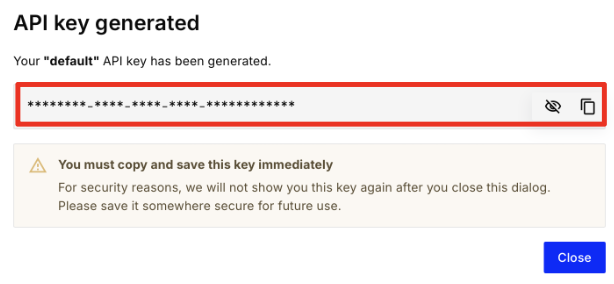
As soon as you sign in, you should see an API key generated for you, copy that!
-
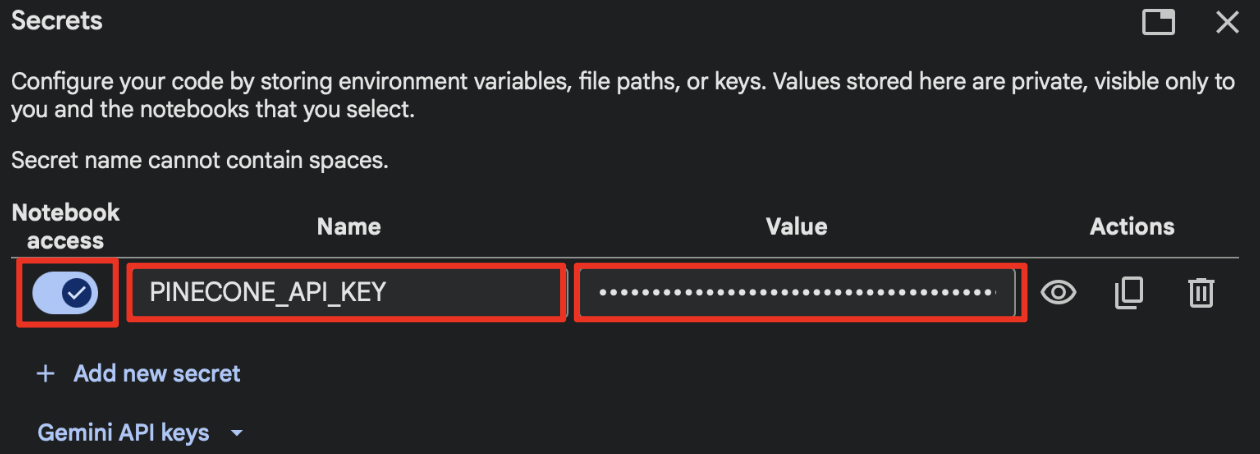
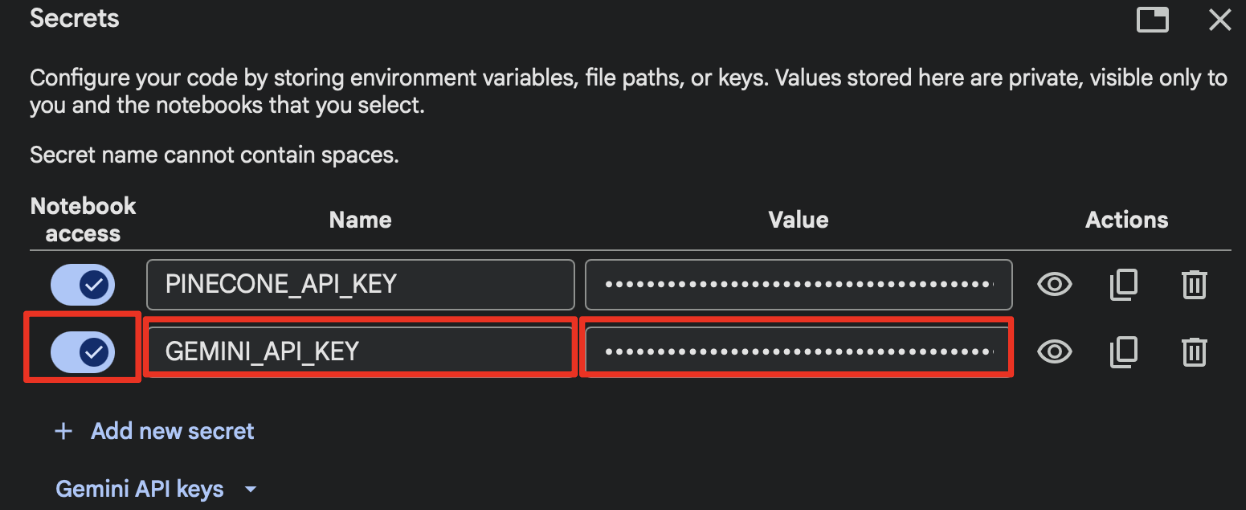
Head back to the Colab notebook, click on the key icon to add a new secret. Enter the name as shown below and paste the API key in the value. Also make sure to give notebook access.
-
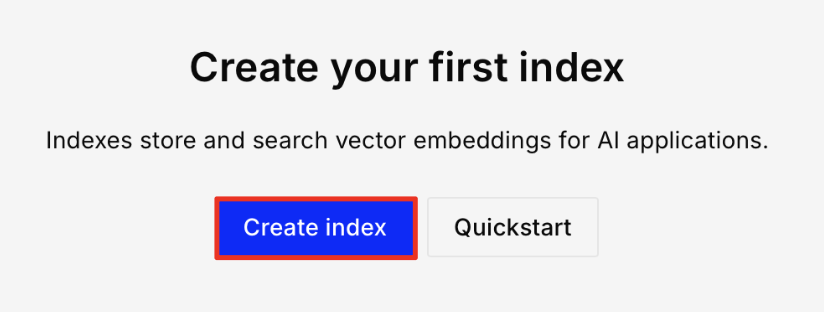
Go back to Pinecone and click on Create Index.
-
Name the index
poyobotand click on Custom settings. Enter the config shown below and hit Create index.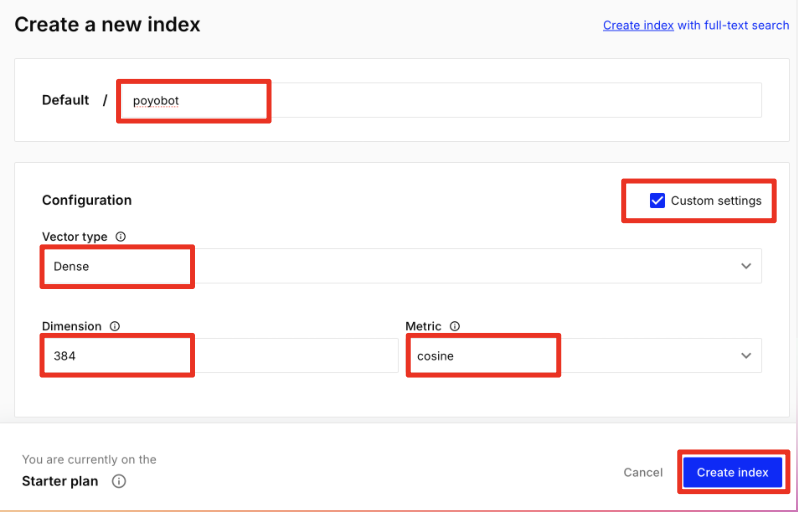
Gemini API Key
-
Head over to aistudio.google.com and go to the dashboard to create a new API key or use an existing one.
-
Go back to the secrets tab, name the key as shown and paste it in the value.
Now that you have everything you need, we can start building Poyobot. Head back to the Colab notebook.
Step 1: Install Dependencies
In the first cell, we will be installing all the dependencies required to implement this project
!pip install pinecone pypdf google-generativeai sentence-transformers
- pinecone: SDK to access Pinecone features
- pypdf: library to extract data from PDFs
- google-generativeai: SDK to access Gemini model
- sentence-transformers: library for embedding models
Step 2: Upload and Extract text from PDF
Now, we will ask the user to upload a PDF, and use pypdf to extract text from it.
from google.colab import files
from pypdf import PdfReader

uploaded = files.upload()
pdf_path = next(iter(uploaded))
reader = PdfReader(pdf_path)
text = ""
for page in reader.pages:
    text += page.extract_text() + "\n"
print(text[:1000])  # Preview first 1000 chars
You should be able to see the first 1000 characters in the PDF printed, meaning we're ready to chunk this text.
Step 3: Chunk and vectorize the text
This is a crucial step that converts our data from just plain text into vectors which can be stored in Pinecone for our RAG logic.
from sentence_transformers import SentenceTransformer

CHUNK_SIZE = 500
CHUNK_OVERLAP = 150
chunks = []
for i in range(0, len(text), CHUNK_SIZE - CHUNK_OVERLAP):
    chunk = text[i:i+CHUNK_SIZE]
    chunks.append(chunk)

embedder = SentenceTransformer('all-MiniLM-L6-v2')
embeddings = embedder.encode(chunks).tolist()
print(embeddings[0][:5])
To review, we first divided our text into chunks every 500 characters, with an overlap of 150 characters to capture the semantics of the text better.
Then, we used the all-MiniLM-L6-v2 embedding model to convert these chunks into vectors. You don't have to worry about the specifics of this model, just know that it converted our chunks of text into vectors of numbers.
Check out the resources tab to learn more about this step!
Step 4: Use Pinecone to store these vectors
We will be using the index we made earlier to store these vectors in Pinecone.
from pinecone import Pinecone
from google.colab import userdata

# Make sure to have API_KEY in your secrets
pc = Pinecone(api_key=userdata.get("PINECONE_API_KEY"))

index = pc.Index("poyobot")

vectors_to_upsert = [
    (f"chunk_{i}",
     embeddings[i],
     {"text": chunk}
     )
    for i, chunk in enumerate(chunks)
]
index.upsert(vectors = vectors_to_upsert)
Step 5: Take input and generate context
We're almost there. Now we will be taking a question from the user and using the same embedder model to vectorize the question.
After vectorizing, we will be querying this vector against our vector store and returning the top 5 most relevant vectors.
user_query= input("Enter your question: ")
query_vector = embedder.encode([user_query])[0].tolist()
query_results = index.query(
    vector=query_vector,
    top_k=5,
    include_metadata=True
)
context_chunks = [match["metadata"]["text"] for match in query_results["matches"]]
context = "\n---\n".join(context_chunks)
print("Context:\n", context)
You should see different chunks of text that are somewhat related to the question asked.
Step 6: Use Gemini to answer questions from the context
Finally, we will be using the Gemini 2.5 Flash model as our LLM to receive this context and use it to answer our question.
from google.colab import userdata
import google.generativeai as genai

# Make sure to have API_KEY in your secrets
genai.configure(api_key=userdata.get("GEMINI_API_KEY"))

model = genai.GenerativeModel('models/gemini-2.5-flash')
prompt = f"Answer the following question using the context given. Context: {context} \n Question: {user_query}"
response = model.generate_content(prompt)
print("Answer:", response.text)
Next Steps
Good job! You just built a RAG powered chatbot that can accurately answer questions by using relevant context for every question.
This is just the beginning. There are a lot of things you can do with RAG. Check out the resources tab for more!